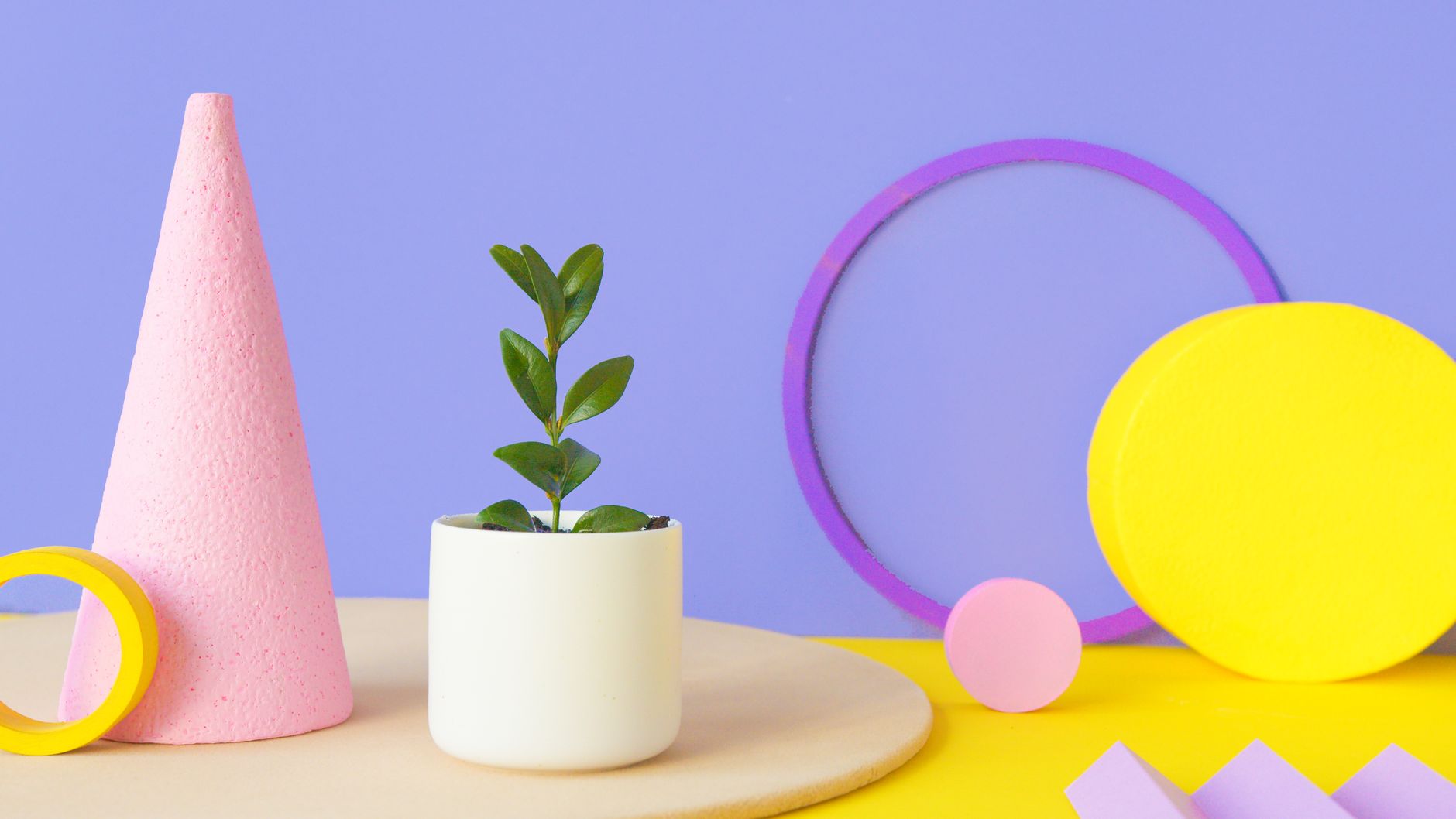
Whether you’re designing a lush game environment or a realistic architectural render, 3D plant models can bring your scenes to life. In this guide, we’ll walk you through the process of creating a beautiful 3D plant from scratch — even if you’re new to foliage modeling.
Tools You’ll Need
Before diving in, make sure you have the right tools. You can create 3D plant model using various software, but here are some popular choices:
- Blender (Free and open source)
- Maya or 3ds Max (Professional-grade)
- SpeedTree (Specialized for vegetation modeling)
- Substance Painter or Quixel Mixer (For realistic texturing)
Step 1: Choose Your Plant Type
Start by choosing the type of plant you want to model. Is it a small potted plant, a wild bush, or a large tree? Pick a reference image or gather a few from multiple angles. Tools like PureRef can help organize your references visually.
Step 2: Block Out the Basic Shape
Use simple shapes (cylinders, spheres, planes) to block out the structure of your plant. For example:
- Stem or Trunk: A scaled cylinder
- Leaves: Flat planes or slightly curved meshes
Step 3: Model Leaves and Branches
Here’s where the real plant-like feel begins:
- Model one or two leaf variations. Use a plane and shape it according to your reference.
- Add edge loops to create subtle bends or curves.
- Use array modifiers or duplication to distribute leaves along branches or stems.
- For 3d tree model or large plants, consider using a particle system or geometry nodes to scatter leaves.
Step 4: Add Textures and Materials
Texturing brings realism to your model. You can:
- Use a high-resolution leaf texture with alpha transparency.
- Apply normal maps and roughness maps to add surface detail without increasing geometry.
- In Substance Painter or Blender’s Shader Editor, combine nodes to create natural-looking materials.
Step 5: Arrange and Duplicate
Create natural variation by:
- Rotating and scaling your leaves or plant parts randomly.
- Bending stems slightly to avoid uniformity.
- Grouping elements (leaves, stems, flowers) and duplicating them with slight changes.
This randomness is key to making plants look organic, very usefull in 3d ivy modeling.
Step 6: Add Final Touches
- Add small imperfections — bent leaves, color variation, or size differences.
- Test your plant in different lighting setups (daylight, soft shadows, etc.).
- If used in a game or animation, ensure it’s optimized (use LODs, reduce poly count, bake textures if needed).
Pro Tips
- Use reference from nature — nothing beats real-life observation.
- Avoid symmetry. Nature is irregular.
- Save your best assets to use in future scenes.
- Consider using addons like Botaniq, Graswald, or The Grove if you want to speed things up in Blender.
Final Thoughts
Creating 3D plants can seem intimidating, but once you break it down into manageable steps, it becomes a fun and rewarding part of the modeling process. Whether you’re crafting a single houseplant or a dense jungle scene, a strong foundation in plant modeling will boost the quality of your 3D environments dramatically.
